Inside Glenn’s smart home
My Real-World HomeKit Setup
A practical look at how my hubs, network, bridges, accessories, rooms, and automations fit together—and why the structure matters.
My setup diagram
See how my network, hubs, bridges, and devices fit together. Use it as a reference for your own plan.
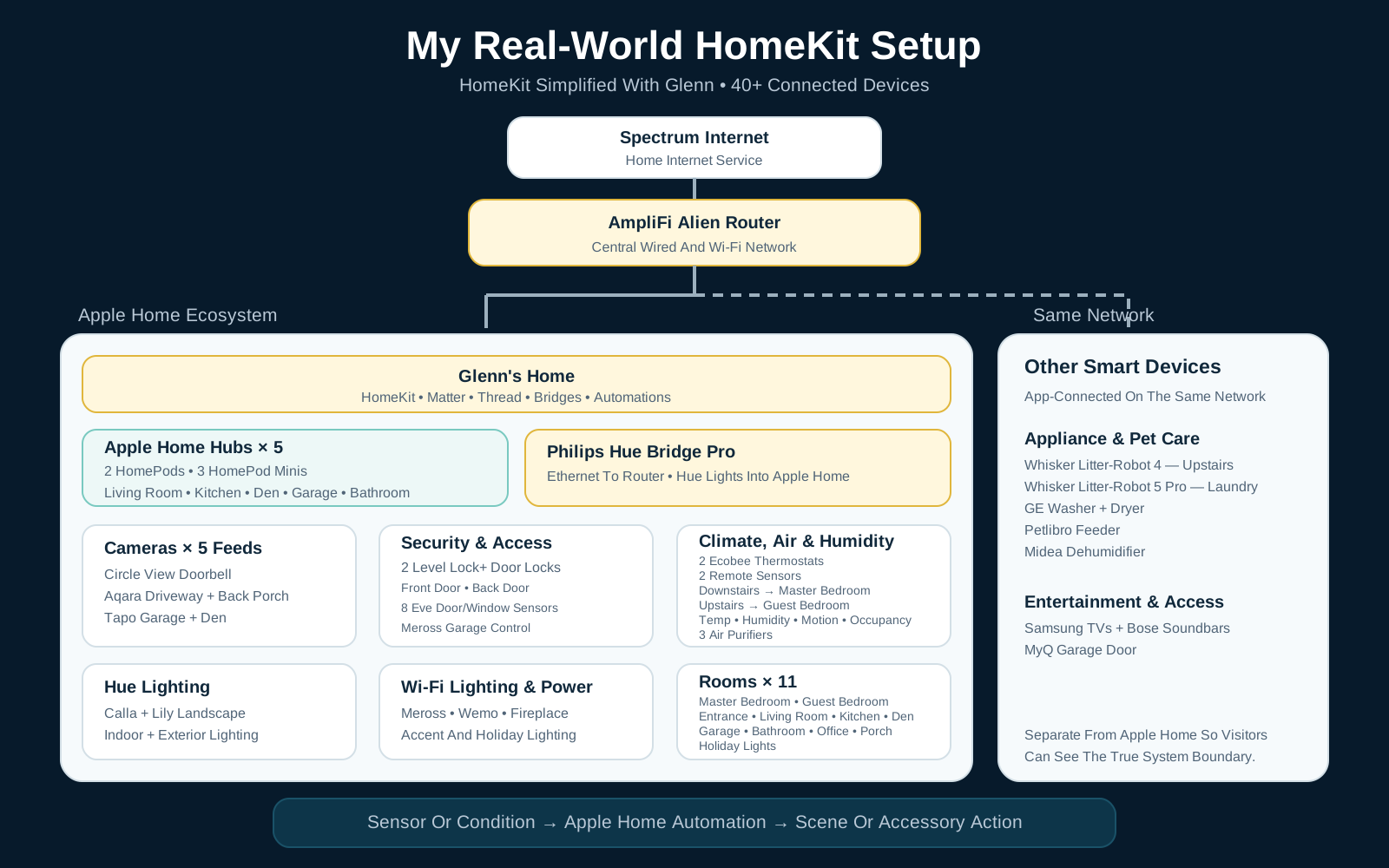
My smart home is in Clemmons, North Carolina. My setup is not a showroom. It grew one useful device and one routine at a time. The result combines Apple Home accessories with a few app-connected products that share the network but remain outside the Apple Home ecosystem.
The network and home hubs
Spectrum provides the internet connection, and an AmpliFi Alien supports the home network. Apple Home hub coverage comes from two full-size HomePods and three HomePod minis distributed across the home.
Multiple hubs help place Siri, audio, and Apple Home control where they are useful, but good network coverage remains the foundation.
- Spectrum internet service.
- AmpliFi Alien network.
- Two full-size HomePods.
- Three HomePod minis.
Lighting, plugs, and bridges
Philips Hue supports the main lighting system through its bridge. Nanoleaf Essentials provides flexible accent lighting. Eve Energy and Meross smart plugs control selected lamps and appliances where plug-level automation makes sense.
The bridge-based lighting system keeps a large group of devices organized without placing every bulb directly on Wi-Fi.
- Philips Hue bridge and lighting.
- Nanoleaf Essentials accent lighting.
- Eve Energy for high-reliability plug control.
- Meross plugs and a smart table lamp.
Sensors, access, and climate
Six windows and two doors use Eve Door & Window sensors. Two Level Lock+ locks support access control. Upstairs and downstairs Ecobee thermostats, along with remote sensors, provide climate information used by selected routines.
These devices support the routines that save energy, improve comfort, and strengthen nightly and away behavior.
- Eight Eve contact sensors.
- Two Level Lock+ locks.
- Two Ecobee thermostats with remote sensors.
- Humidity-driven dehumidifier control.
Cameras and app-connected devices
Camera coverage includes a Circle View doorbell, Aqara cameras at the driveway and back porch, and Tapo cameras in the garage and den. Some products work directly in Apple Home; others remain app-connected and share the network.
The setup diagram uses solid connections for the Apple Home ecosystem and a dashed branch for devices that remain app-connected.
- Circle View doorbell.
- Aqara driveway and back-porch cameras.
- Tapo garage and den cameras.
- Litter-Robot 4 and 5 Pro as app-connected devices.
How the pieces become a system
The value comes from the relationships between hubs, sensors, lighting, climate, access, and routines. Motion lights the stairs, contact sensors support energy management, humidity controls the dehumidifier, and presence helps manage away behavior.
The diagram and Gear page show both the architecture and exact products, while the Automations guide explains how the routines are designed.
- Use rooms and consistent names to organize devices.
- Connect routines to real household needs.
- Keep manual controls and safety protections.
- Document the products and dependencies behind each routine.
Frequently Asked Questions
Does every device in Glenn’s home work in Apple Home?
No. The diagram clearly separates Apple Home devices from app-connected products that share the network but remain outside Apple Home.
Why use several HomePods?
They provide Siri and audio in multiple rooms while also contributing to Apple Home hub coverage.
Where are the exact product models listed?
The Gear I Use page provides exact models, compatibility notes, and clear labels showing which products Glenn personally uses.
Your next step
Use my setup as a reference—not a shopping list.
Start with the foundation your home needs, then add devices only when they solve a real problem or improve a routine.
Get the Free Starter Kit